Do you have a textbook, coursebook, or study material that is hundreds of pages long but don't know where to start? AI Study Buddy helps you convert any document into a fully structured course in just 5 minutes!
Key highlight: AI will automatically analyze the content, create a day-by-day study plan, generate quiz questions, and organize knowledge in the most scientific way.
Why Create Curriculum with AI?
Instead of having to read hundreds of pages of material without knowing how to organize the knowledge, AI Study Buddy offers outstanding benefits:
- Save time: No need to create plans manually, AI does everything for you in minutes
- Systematic learning: Content is broken down by day with clear objectives
- Auto-generated quizzes: Each lesson comes with review questions to reinforce knowledge
- Progress tracking: Know exactly how far you've studied and how much content remains
- Personalization: Adjust difficulty and learning pace to match your ability
Detailed Step-by-Step Guide
1 Access the "My Courses" Page
Log in to AI Study Buddy and go to "My Courses" in the left sidebar menu.
"My Courses" page when no courses have been created yet
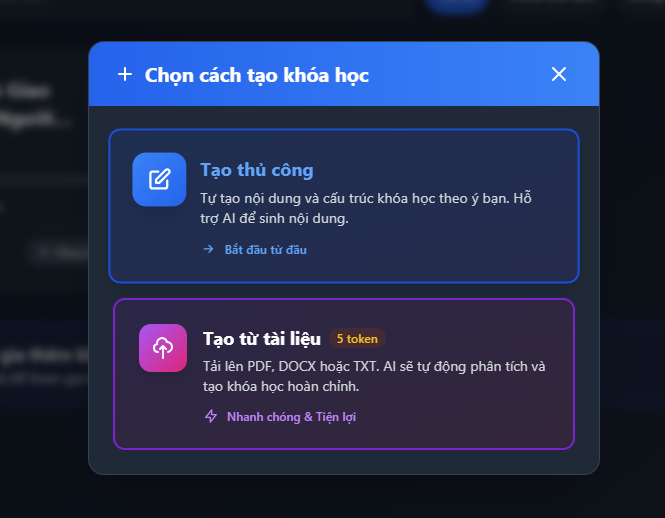
2 Click "Create from Document"
On the Courses page, you'll see the "+ Create Course" button. Click on it and select the option:
"Create from document" - Upload PDF, DOCX, or TXT files
Modal to select "Create from document" or "Create manually"
Tip: You can also choose "Create manually" if you want to build content from scratch.
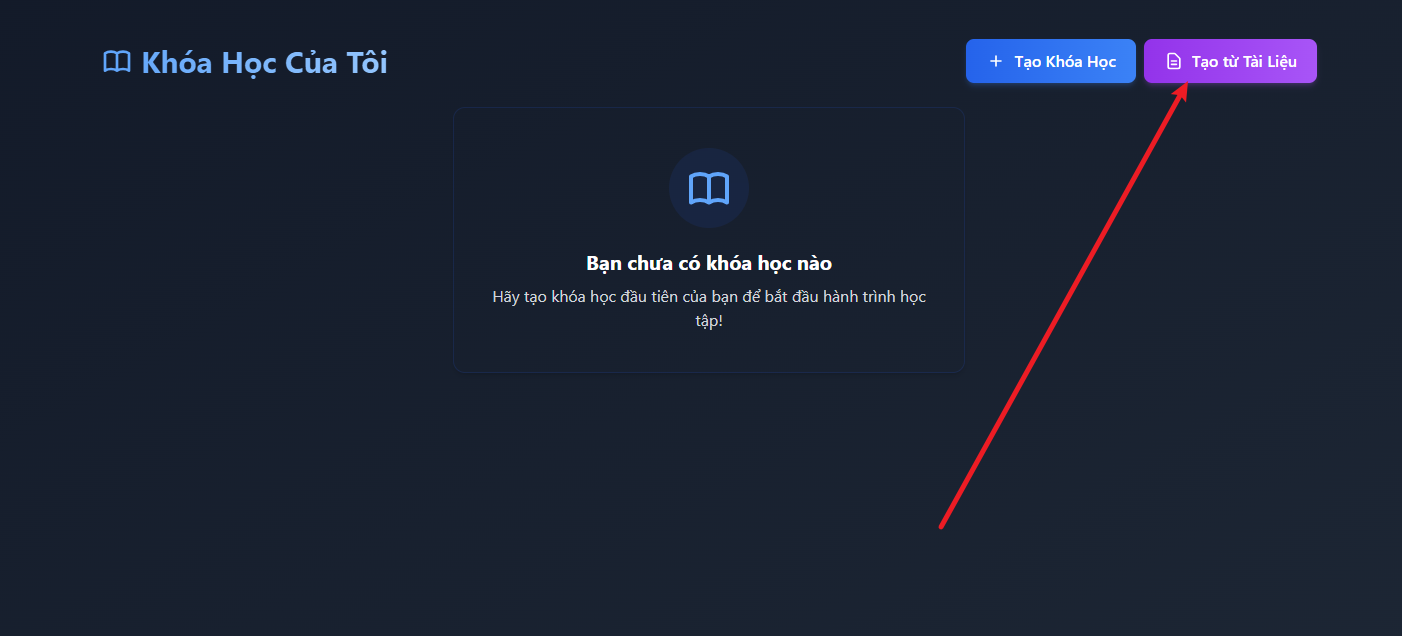
3 Upload Your Document
Drag and drop or select a file from your computer:
- Supported formats: PDF, DOCX, TXT
- Maximum size: 10MB
- Recommended pages: 20-200 pages (optimal)
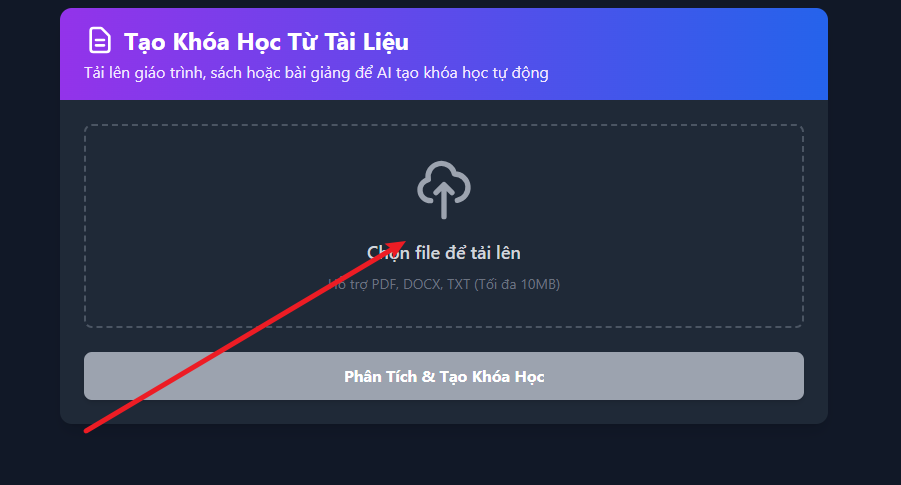
Drag and drop a file into the upload area or click to select a file
Note: PDF files should contain selectable text (not scanned images). If your file is scanned, please use an OCR tool first.
4 AI Analyzes & Creates the Course
After uploading, AI will automatically:
- Read and analyze the entire document content
- Extract key concepts and main topics
- Generate a course name and detailed description
- Suggest the number of study days appropriate for the volume of knowledge
- Distribute content across days/weeks
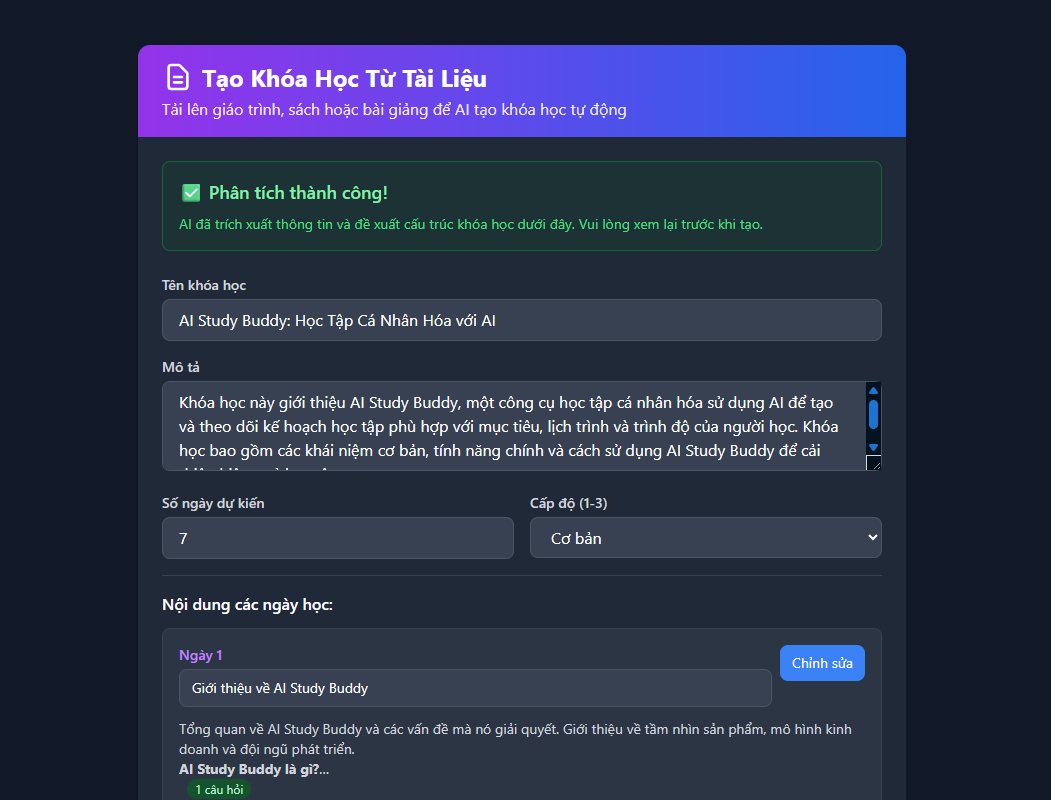
"Analysis successful" notification after AI finishes processing
Processing time: Usually takes 30 seconds to 2 minutes depending on document length.
5 Preview & Edit
After AI finishes creating, you'll see a preview with:
- Course name: Editable to your preference
- Description: Summary of the main course content
- Estimated days: You can increase/decrease to study faster or slower
- Level: Beginner / Intermediate / Advanced
- Daily content: Each day has a title and list of topics
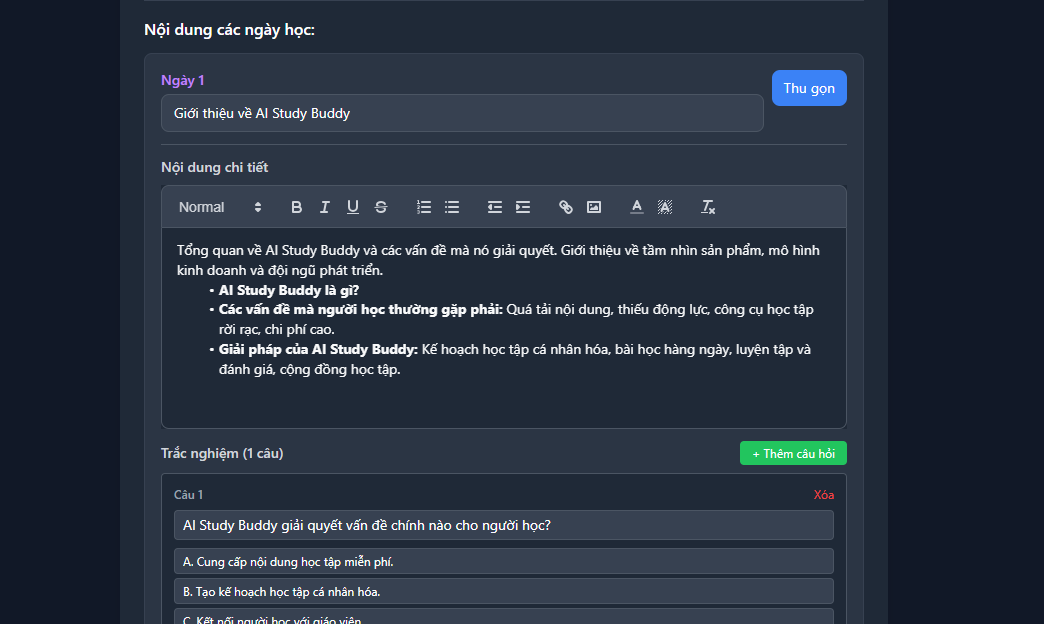
Preview course information: Name, description, number of days, daily content
6 Fine-Tune Details (If Needed)
You can fine-tune each section:
- Edit daily titles: Click the "Edit" button next to each day
- Add/Remove content: Customize the list of topics for each day
- Edit questions: Modify or add quiz questions
- Reorder: Drag and drop to rearrange the days
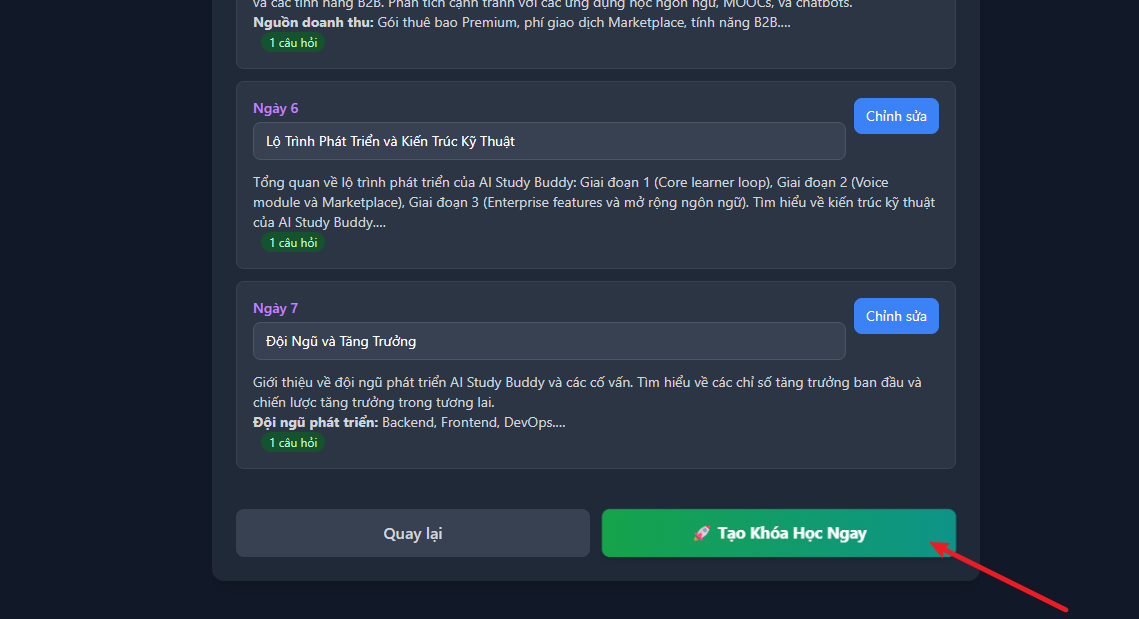
Detailed content editing interface for each study day
Pro Tip: If you want to study faster, reduce the number of days. AI will automatically consolidate content in a logical way.
7 Click "Create Course Now"
When you're satisfied with the content, click the green "Create Course Now" button at the bottom.
The course will be saved to your "My Courses" list and you can start learning immediately!
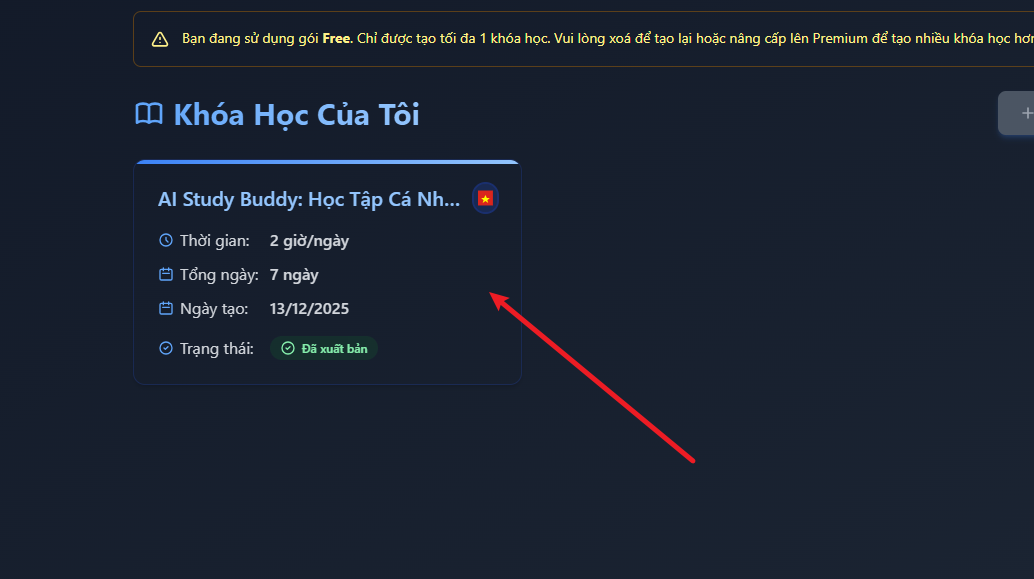
New course appears in the list with "Published" status
Start Learning Right After Creation
After creation, the course will appear in your list with the following information:
- Course name
- Study time (hours/day)
- Total number of days
- Date created
- Status: "Published" or "Draft"
Click on the course to start learning along the AI-generated study path!
Special Features
1. Auto-Generated Quizzes
Each study day includes quiz questions to test your knowledge. You don't need to create them yourself - AI has already generated them based on the lesson content!
2. Progress Tracking
See how much of the course you've completed and how many days remain.
3. Review Mode
After finishing a topic, you can go back and review anytime. AI will prioritize the areas where you need improvement.
4. Reading Station
Read the original document right within the app with support tools like highlighting, notes, dictionary lookup, and more.
Ready to Create Your First Course?
Experience the most modern way of learning with AI Study Buddy!
Sign Up Free for 3 MonthsFrequently Asked Questions
Q: How many courses can I create?
A: The Free plan allows you to create 1 course. Upgrade to Premium for unlimited courses.
Q: Does the AI understand Vietnamese?
A: Yes! AI Study Buddy supports multiple languages, including Vietnamese and English.
Q: Can I share courses with friends?
A: Not currently supported. This feature will be available in the Enterprise version.
Q: My PDF is a scanned image, can I still upload it?
A: You'll need to use an OCR tool to convert the image to text first. Some free tools: Adobe Acrobat Online, Google Drive OCR.
Q: Can I edit the course after creating it?
A: Yes! You can edit the name, description, and add/remove content at any time.
Special offer: Sign up today to receive 3 months of Premium for free - create unlimited courses and access all features!
Conclusion
Creating curriculum with AI is no longer a distant dream. With just 7 simple steps, you can convert any document into a structured, easy-to-follow, and effective course.
AI Study Buddy is not just a course creation tool - it's a personal study assistant that helps you:
- Save time on planning
- Study systematically and scientifically
- Track progress clearly
- Auto-generate quizzes
- Personalize your learning experience
Start your smart learning journey today!